Changing Your Shopify Theme Without Losing SEO Rankings: The Pre-Launch Checklist
Does changing your Shopify theme affect SEO? Your URLs and admin content stay put, but everything the theme outputs changes. This pre-launch checklist covers what to check before you press Publish.

- Published
- Updated
- Read
- 10 min
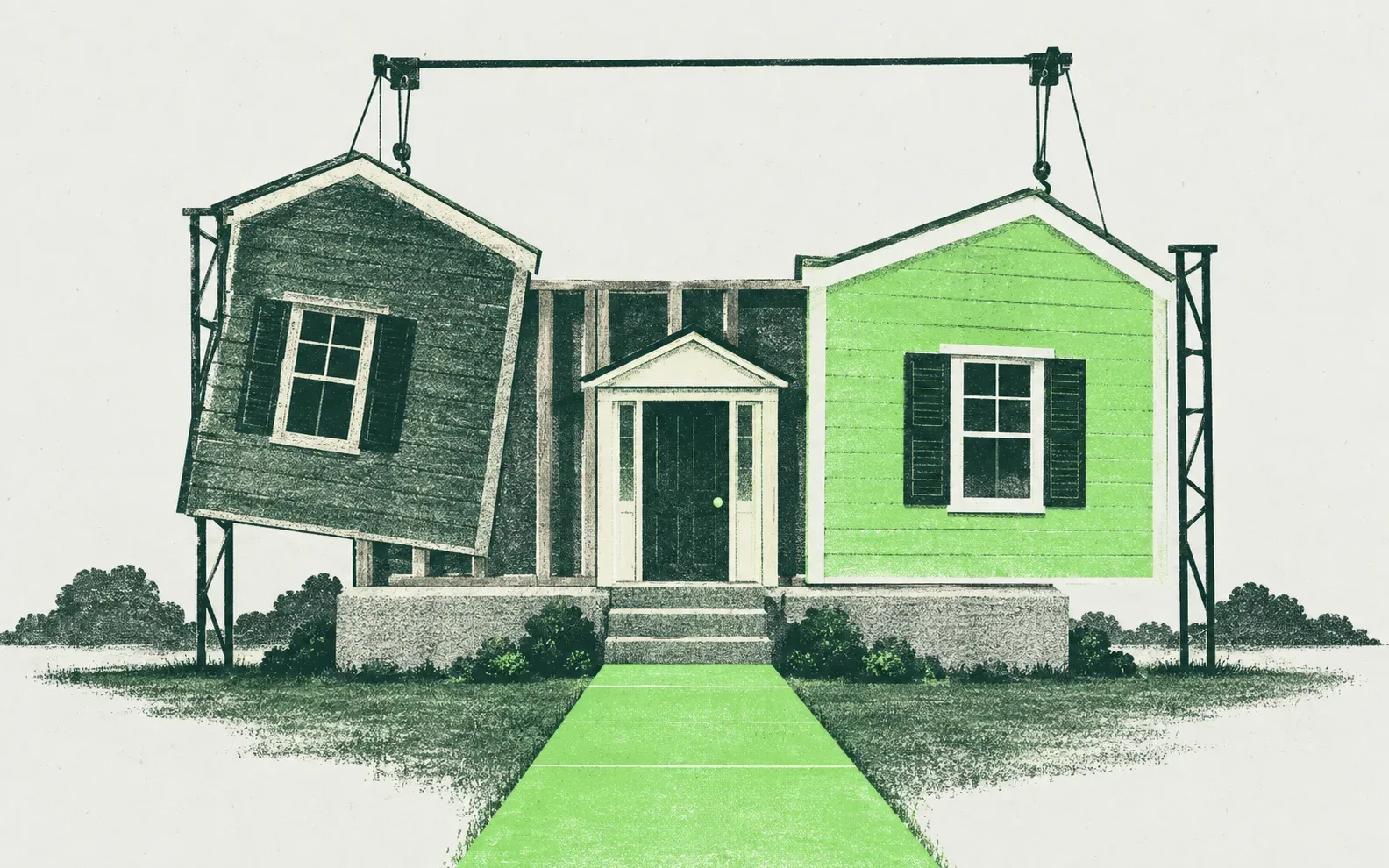
- Changing your Shopify theme does not change URLs, products, collections, meta titles or redirects, because those live in the admin.
- It does change everything the theme outputs: section content, headings, head tags, structured data, internal links, speed and any custom robots.txt.liquid.
- The most common cause of ranking drops is SEO copy that lived in theme sections and never made it to the new theme.
- Compare the old and new theme page by page on your top 20 to 50 URLs using preview links before publishing.
- Keep the old theme unpublished in your library for at least a month so you can roll back quickly.
Does changing your Shopify theme affect SEO? Yes, it can, but not the way most store owners fear. Your URLs, products, collections, meta titles, meta descriptions and redirects live in the Shopify admin, so a new theme doesn't touch them. What changes is everything the theme outputs: text stored in sections, heading tags, structured data, menus and internal links, page speed and any custom robots.txt. Nearly every ranking drop we see after a theme switch traces back to one of those, and all of them can be checked before you press Publish.
This is the checklist we use when a client moves to a new Shopify theme: what moves with you, where rankings get lost, how to compare old and new themes side by side, and what to watch after launch.
What moves with you and what doesn't#
Shopify's theme documentation draws the line clearly: products, collections, menus, pages and blog posts "aren't changed or deleted when you switch to a new theme, because they're managed in the Admin". But "the content and settings that are managed using the theme editor, theme code editor, and language editor are unique to each theme".
In SEO terms:
| Stays with the store (admin) | Stays with the old theme |
|---|---|
| Product and collection URLs, titles and descriptions | Text, images and FAQs added in theme editor sections |
| SEO titles and meta descriptions on products, collections, pages and posts | Homepage sections and their copy |
| Pages and blog posts | Code edits in theme.liquid and snippets |
| Menus in Content → Menus | Custom JSON-LD, noindex rules and head tags |
| URL redirects | robots.txt.liquid |
| Metafield values | Alternate templates (product.bundle.json and so on) |
| Markets, languages and automatic hreflang | App blocks and app embed settings |
| Homepage title and meta description in Online Store → Preferences | Language editor text and theme settings |
The right-hand column is where the risk sits.
Choosing a theme with SEO in mind#
Most theme decisions are made on looks. Before you buy, open the theme's demo store and check a product page and a collection page for these:
- Online Store 2.0 with JSON templates. Sections on every page and dynamic sources for metafields, so you can keep SEO copy in the admin and still place it anywhere in the layout.
- Heading structure. One H1 per page, holding the product or collection name. View the source or use a browser extension that outlines headings.
- Collection description placement. Can it show above the grid, below it, or both? Long buying guidance usually belongs below the products, with a short intro above.
- Menus from Shopify's menu system. Mega menus that read from Content → Menus are easier to maintain than menus hard-coded into section settings.
- Breadcrumbs. Built in, or at least easy to add.
- Product structured data. Search the demo's source for
application/ld+jsonand check what types it outputs. - Search & Discovery filters instead of tag-based filtering, which creates crawlable tag URLs.
- Speed on the demo. Run Lighthouse on the demo product page. Demo stores are light, so a slow demo will be slower with your catalog and apps.
- Updates and support. Themes from the Shopify Theme Store receive updates; a heavily customized theme from an unknown developer can leave you stuck on old code.
Where rankings actually get lost#
SEO copy that lived in sections#
This is the most common cause by far. Many stores put collection intro text, buying guidance and FAQs into sections added in the theme editor rather than into the collection description. Those sections belong to the old theme. Publish the new one and the collection pages lose hundreds of words of copy that was doing the ranking. Nobody notices, because the pages still look complete.
Headings change#
The new theme may render the product title as an <h2>, wrap the logo in an <h1> on every page, or move the collection description below a 48-product grid. Each is small. Across a whole catalog, they change what Google reads as the main topic of the page.
Head tags change#
Title templates (does the theme add "– Store Name" to every title?), meta description output, the canonical tag, Open Graph tags and any robots meta rules. A theme that drops <link rel="canonical" href="{{ canonical_url }}"> or outputs two canonicals causes duplicate problems within weeks.
Structured data disappears or doubles#
Some themes output Product JSON-LD with Shopify's structured_data filter, which renders Product or ProductGroup markup. Some output their own markup, and some output none. If your old theme or a snippet added Product, BreadcrumbList, Organization or FAQ markup, it doesn't move. If your reviews app also adds Product markup, you may end up with two conflicting blocks. Our schema markup service usually starts with this audit.
Internal links change#
Mega menus built from theme sections, footer link lists, breadcrumbs, related products and "shop by category" blocks are all theme output. If the new theme's menu shows fewer collections, or drops breadcrumbs, those collections lose links from every page on the site. Our guide to Shopify internal linking explains why that matters.
Alternate templates don't exist in the new theme#
Products, collections and pages assigned to an alternate template, such as product.high-ticket, need a template with the same name in the new theme. If it is missing, those pages fall back to the default template and lose their custom layout and sections.
A custom robots.txt disappears#
Shopify's robots.txt documentation places robots.txt.liquid in the theme's Templates folder. If you customized it, the new theme serves Shopify's default robots.txt until you copy the file across. Usually that is harmless. If your customization blocked crawler traps on a large catalog, it isn't.
Speed changes, in either direction#
A new theme can be much faster or much slower. Large hero videos, sliders, several font families and leftover app scripts are the usual culprits. Core Web Vitals are part of Google's page experience signals; they rarely decide rankings on their own, but they affect conversion rates immediately.
How to change your Shopify theme, step by step#
The mechanics are simple, and none of them affect the live store until the last step.
- Go to Online Store → Themes. In the theme library, use Add theme to get a theme from the Shopify Theme Store or upload a theme file.
- The new theme lands in the library as a draft. Click Customize to open it in the theme editor.
- Rebuild your sections, templates and settings, and port any code customizations through Edit code.
- Use Preview and share preview links to test it on real devices and with a crawler.
- When the checks below pass, click Publish on the draft theme.
Everything between step 2 and step 5 is where SEO is won or lost.
The pre-launch checklist#
Work through this in the theme library before publishing. Nothing here touches the live store.
1. Take an inventory of the current theme (a week before)#
- Crawl the live site with Screaming Frog or a similar crawler. Save titles, meta descriptions, H1s, H2s, canonicals, word counts, structured data and internal link counts. This is your baseline.
- Export your top pages from Search Console: Performance → Search results → Pages, last three months, sorted by clicks. The top 20 to 50 URLs, plus one of each template type, become your test list.
- Download the current theme from Online Store → Themes (the theme's actions menu has a download option) so you have every file.
- List code customizations: edits in
theme.liquid, custom snippets, JSON-LD, noindex rules, tracking scripts. - List app embeds and app blocks in the theme editor, and note which apps inject content on product and collection pages.
- Note alternate templates and which products, collections and pages use them.
- Check for
robots.txt.liquidin the Templates folder.
2. Rebuild in the new theme#
- Move section copy into the admin where possible. Put collection intros in the collection description, and product FAQs and specs in metafields connected to the theme with dynamic sources. Copy that lives in the admin survives the next theme change too.
- Recreate alternate templates with the same names, so product and collection assignments carry over.
- Port head customizations: JSON-LD, noindex snippets, verification tags, hreflang overrides if you manage hreflang yourself.
- Copy
robots.txt.liquidif you have one. - Rebuild menus and hub sections so every collection that had a sitewide link still has one.
- Turn on app embeds in the new theme and re-add app blocks for reviews, size guides and similar. Shopify's app embed docs note they aren't active by default after a theme change. It's also a good moment to drop the apps slowing down your store.
- Move tracking out of
theme.liquidwhere you can. Pixels added in Settings → Customer events or through apps don't depend on the theme.
3. Check head tags and headings on every test URL#
For each URL on your test list, compare old and new:
| Check | What should match |
|---|---|
<title> | Same text and structure |
| Meta description | Present and unchanged |
| Canonical | Exactly one, pointing to the same URL |
| Meta robots | No unexpected noindex |
| H1 | One H1 with the product, collection or page name |
| Body copy | Same descriptions, intros and FAQs, visible in the HTML |
| Structured data | Same types, one Product block per product, no errors in the Rich Results Test |
| hreflang | Same set of alternates (for multi-market stores) |
| Internal links | Menus, breadcrumbs and related links present |
4. Test speed and mobile#
Run Lighthouse in Chrome DevTools against the preview for your homepage, a collection and a product. Compare with the live theme. A drop in Largest Contentful Paint or a jump in layout shift is easier to fix before launch than after. Our speed optimization service covers what to fix.
How to compare the old and new theme before publishing#
Shopify lets you share a preview of any unpublished theme. According to Shopify's docs, visitor previews "are visible to anyone with the URL and don't require authentication" and expire after two days. That makes them usable by a crawler or a quick script.
For a fast head-to-head on one URL, run this in a terminal with your live URL and the preview link's host:
LIVE="https://www.yourstore.com"
PREVIEW="https://your-preview-link.shopifypreview.com"
PATHNAME="/products/oak-barrel-sauna"

for BASE in "$LIVE" "$PREVIEW"; do
  echo "== $BASE$PATHNAME"
  curl -sL -c /tmp/cj -b /tmp/cj "$BASE$PATHNAME" \
    | grep -oiE '<title>[^<]*|<meta name="description"[^>]*|<link rel="canonical"[^>]*|<meta name="robots"[^>]*|<h1[^>]*>[^<]*|"@type": ?"[A-Za-z]+"|hreflang="[^"]*"' \
    | head -40
done
Look for missing lines rather than exact matches. On the preview, the canonical will point to your live domain; that's expected. What you don't want is a missing canonical, a second one, a new noindex, a missing H1 or a structured data type that has disappeared.
For a fuller comparison, crawl the preview with the same crawler settings you used for the baseline and compare the exports column by column: word count, H1, canonical and structured data. Word count is the fastest way to catch section copy that didn't make it across.
Launch day#
- Publish at a quiet hour on a weekday, when someone can watch the store for the rest of the day. Shopify publishes from Online Store → Themes, using Publish on the draft theme.
- Keep the old theme. Shopify's theme documentation allows up to 20 themes in the library on most plans, and more on Plus. The old theme stays unpublished and ready as a rollback.
- Spot-check the test list live: titles, H1s, copy, add to cart, reviews and filters.
- Inspect five key URLs with Test live URL in Search Console to confirm Google can fetch and render them.
- Check
/robots.txton the live domain. - Run the Rich Results Test on a product and a collection.
You don't need to resubmit your sitemap. URLs haven't changed, and Shopify keeps the sitemap current.
If something goes wrong: a rollback plan#
Decide your rollback triggers before launch, so nobody has to debate them under pressure:
- Add to cart, checkout or payment apps broken on any device
- A noindex, a missing canonical or a broken robots.txt on live pages
- Structured data errors across all products in the Rich Results Test
- A sharp drop in organic clicks across a whole page type that you can't explain within a few days
Rolling back is one click: publish the old theme from the library. Fix the issue in the new theme as a draft, rerun the parity checks and publish again. Rankings recover faster after a short rollback than after weeks on a broken template.
The first 30 days: what to watch#
- Performance. Compare clicks and average position for your test pages, week by week, against the four weeks before launch. Small swings while Google recrawls are normal. A steady slide on one page type (all collections, all blog posts) points to a parity miss on that template.
- Page indexing. Watch for rises in "Duplicate, Google chose different canonical than user" (a canonical problem) or "Crawled – currently not indexed" (often lost copy). Our guides to Google choosing a different canonical and crawled – currently not indexed cover both.
- Enhancements. Product snippets and merchant listings reports should keep the same valid item counts.
- Core Web Vitals. The Search Console report uses field data from real Chrome users collected over the previous 28 days, so it catches up slowly. Use Lighthouse for quick checks and the report for the trend.
If a page type drops and you can't find the cause within a week or two, compare the rendered HTML of an old-theme page (from your downloaded theme or crawl) with the new one. The difference is almost always visible.
When a theme change is really a migration#
A theme change on its own doesn't change URLs. It becomes a migration when you change more at the same time: renaming handles, restructuring collections, merging products, moving to Markets subfolders or changing domains. Those need a full redirect map and a migration plan. Our Shopify migration SEO checklist covers that process.
Our advice is to change one thing at a time. Launch the new theme with the same URLs and content, let rankings settle for a few weeks, then restructure. When everything changes at once and traffic drops, you can't tell which change caused it. If you're redesigning as part of a bigger rebuild, our SEO-first Shopify development team plans the theme around the pages that already rank. And for a quick self-check before you start, work through our free Shopify SEO checklist.
Questions people ask about this
Will I lose my SEO if I change my Shopify theme?
Not if you check the theme output before publishing. Your URLs, product and collection content, meta titles, meta descriptions and redirects are stored in the admin and don't change. Rankings drop when the new theme loses content stored in sections, changes headings or head tags, removes structured data or internal links, or loads much slower. A parity check on your top pages catches these before launch.
Does changing my Shopify theme change my URLs?
No. Shopify controls URL structure: products stay at /products/handle, collections at /collections/handle and pages at /pages/handle, whatever theme you use. URLs only change if you edit handles, delete and recreate content, or add markets and domains at the same time. If you do change a handle, keep the Create a URL redirect box ticked.
Do I lose meta titles and descriptions when I change themes?
No. SEO titles and meta descriptions for products, collections, pages and blog posts are stored in the admin, and the homepage title and description live in Online Store Preferences. The new theme must still output them correctly, so check that each page has one title tag and one meta description, and that the theme's title format matches what you had.
How long do rankings take to settle after a Shopify theme change?
If URLs and content stay the same, most stores see only small position changes while Google recrawls, usually settling within a few weeks. Larger catalogs take longer because Google needs to recrawl more pages. A steady decline on one page type after two or three weeks suggests something on that template changed, such as lost copy, headings or structured data.
How do I change my Shopify theme safely?
Add the new theme to your theme library from Online Store, Themes, and build it as a draft while the old theme stays live. Recreate section content, templates and code customizations, then compare your top pages using preview links. Publish at a quiet time, keep the old theme as a rollback, and monitor Search Console for the next 30 days.
Want this done on your store?
Fixes for the crawl, index and schema problems Shopify creates on its own: duplicate product paths, tag pages, filter URLs, app bloat and Markets hreflang.
More from Technical SEO

The Shopify Apps Slowing Down Your Store and Quietly Hurting SEO (Plus a 20-Minute Audit)
Shopify apps slow down your store, leave code behind after you uninstall them, and sometimes change what Google sees. This 20-minute audit shows where to look and what to remove.

Crawled – Currently Not Indexed on Shopify: Why Google Skips Your Pages
Crawled – currently not indexed means Google fetched a page and chose to leave it out. On Shopify most of those URLs are harmless; here is how to find the few that cost you sales and fix them.
Shopify Speed Optimization: Fixing LCP on Collection Pages Without Killing Apps
Why Shopify collection pages fail LCP, how to find the real LCP element, and the fixes in order: image loading, animations, app scripts and Liquid render time.